Exporting Your Work
Export format, scale, sprite sheet layout, GIF options, and presets.
Export turns your frames into a shareable file — either a sprite sheet PNG or an animated GIF.
Export format
Two formats are available in the export panel:
- Sprite sheet (PNG) — all frames laid out in a single image, arranged in rows. This is the format game engines read.
- Animated GIF — a looping animation of the frames. GIF export is a Pro feature.
The layout and animation options below appear depending on which format is selected.
Scale
Choose an output scale of 1×, 2×, 4×, or 8×. Free accounts can use 1× and 2×; 4× and 8× require Pro. Scale also interacts with the maximum output resolution: Free accounts are capped at 256×256 pixels total output size, regardless of canvas size and scale.
Rows (sprite sheet)
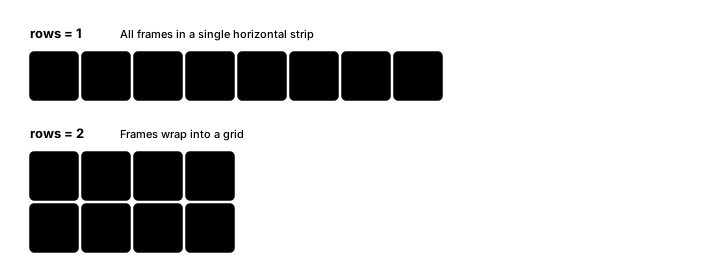
The row count controls how frames are laid out in the sprite sheet — a slider lets you choose from 1 up to the total number of frames. With 1 row, all frames are placed side by side horizontally; higher row counts wrap frames into a grid.
Animation (GIF)
When exporting as a GIF, set the playback frame rate (FPS) and choose whether the animation loops forever or a fixed number of times.
Transparent background
Toggle Transparent Background on to export with alpha transparency, or off to fill the background with a solid color.
Presets
Save the current export settings as a named preset to reuse later — format, scale, layout, background, and GIF options are all captured. You can store up to three presets. Your most recent settings are also remembered between sessions, so the panel reopens the way you left it.
Preview
The export screen shows a live preview as you adjust format, scale, rows, and background settings.
Free version limits
Free accounts are limited to 2× scale and a 256×256 maximum output resolution, and GIF export requires Pro. Upgrading to Pro unlocks 8× scale, unlimited resolution, and animated GIF export.