Frames and Animation
Add, duplicate, and play back frames to build sprite animations.
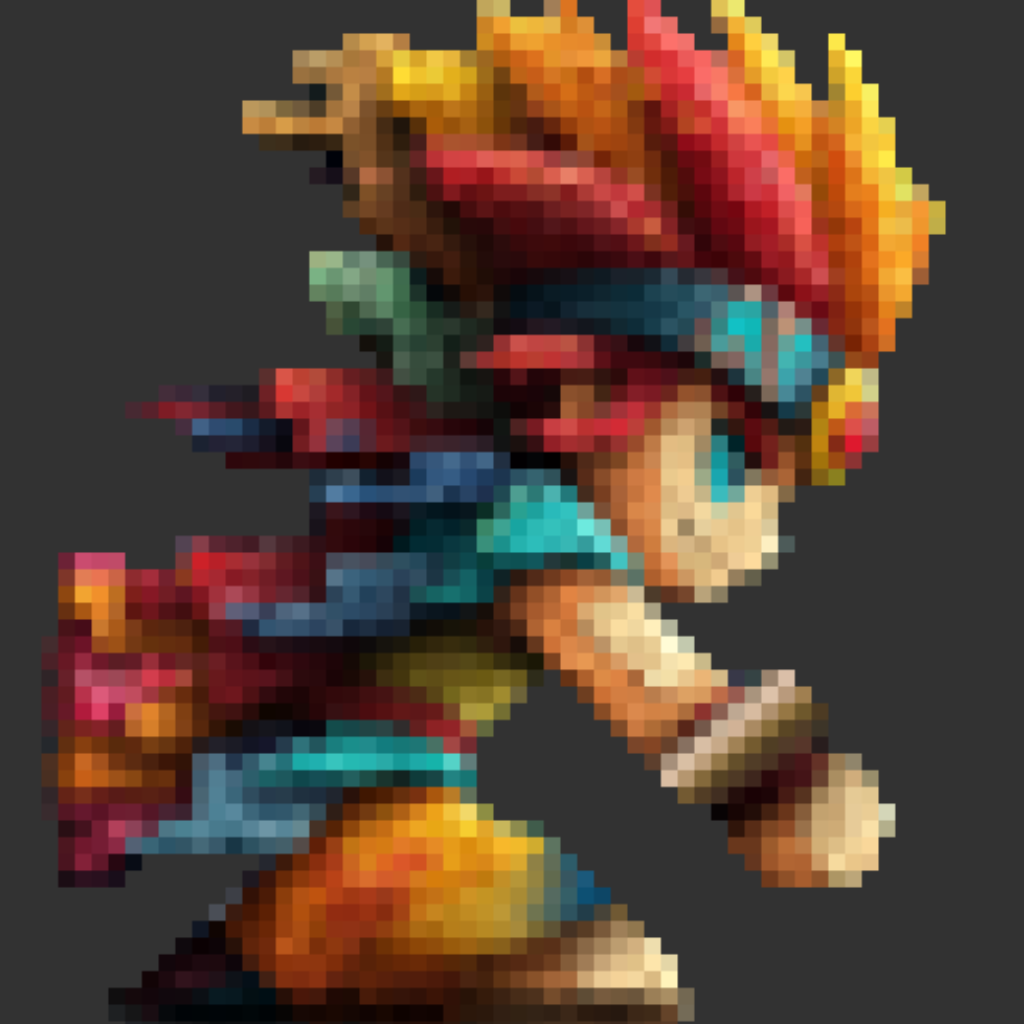
A canvas is a sequence of frames — each one a full set of layers — that together form an animation.
Adding frames
Tap + in the frames panel to add a new blank frame after the current one. You can also add a frame from a photo — see Import from Photo.
Selecting, duplicating, and deleting
Tap a frame thumbnail to switch to it. Long-press a thumbnail to open the frame actions menu:
- Select Frame — same as tapping.
- Duplicate Frame — creates a copy right after the current frame, including all of its layers.
- Delete Frame — removes the frame. Not available when only one frame remains.
Playback
The animation section below the frame grid has a play/pause button and an FPS (frames per second) field. Press play to preview the sequence at the configured speed; press pause to stop and return to manual frame selection.
Onion skin
Onion skin ghosts the neighbouring frames onto the canvas so you can line up movement between poses. You can:
- Turn it on or off.
- Adjust the ghost opacity.
- Choose how many frames to show before and after the current one (up to three in each direction).
- Enable color coding to tint previous and next frames differently, so “before” and “after” stay easy to tell apart.
Animation tags
Animation tags are named groups of frames — such as “Walk” or “Attack” — that let you scope playback to just part of a longer canvas.
- Tap + in the Animation Tags section to create a tag.
- Rename a tag at any time.
- Add or remove frames from a tag through the frame actions menu.
- Use the Playback picker to preview All Frames or a single tag.
Because tags reference frames themselves rather than positions, they stay correct when you add, delete, or reorder frames.
Frame limits
Free accounts are limited to 8 frames per canvas. Upgrading to Pro removes this limit.